iPhone Dual Sim for Short Vs. Long Stays in Peru
11/10/2026
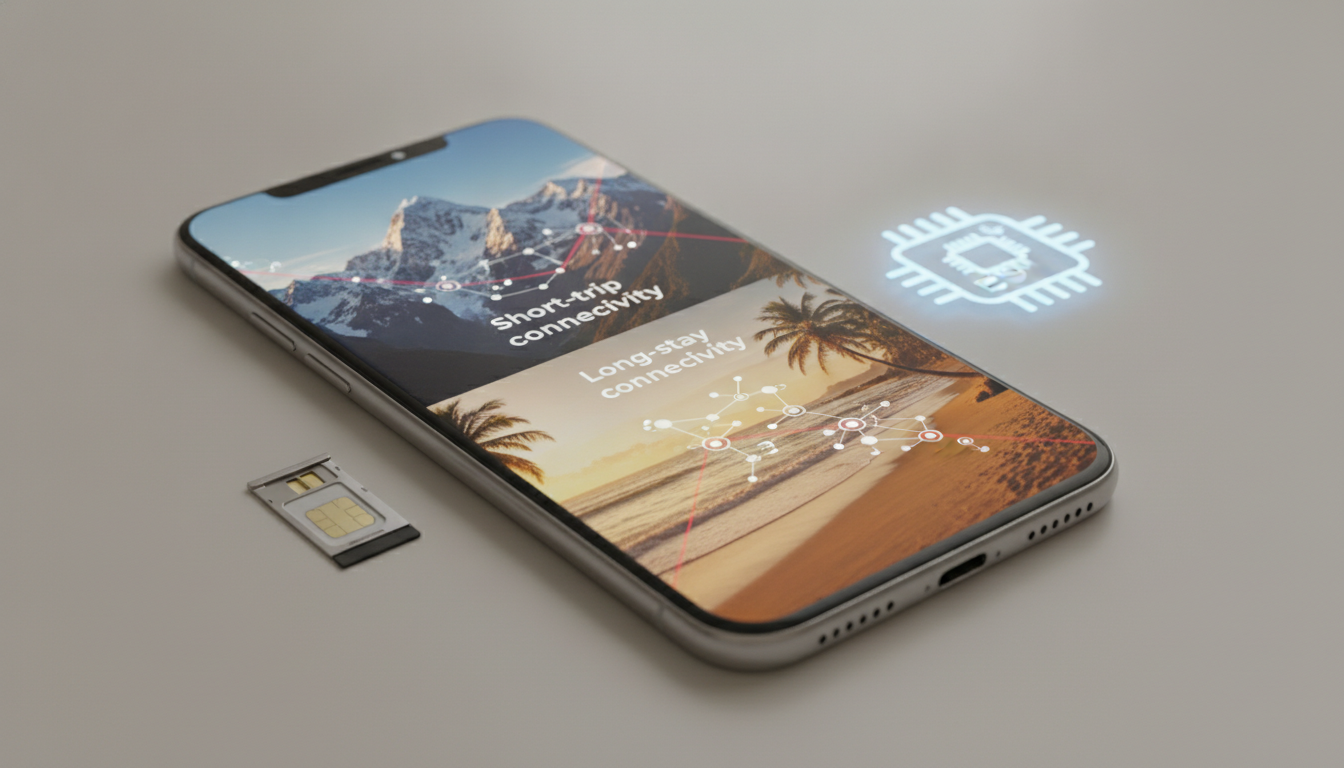
An iPhone XS or newer can generally run a home line and a Peru eSIM together. For a short trip, keep your regular SIM active for calls and use the Peru eSIM for cellular data.
For a longer stay, make the Peru eSIM your default data line and consider turning off your home line if roaming charges or unwanted calls are a concern.
| iPhone model or version | Dual SIM configuration relevant to Peru | Main limitation to check |
|---|---|---|
| iPhone XS, XS Max, XR | Physical nano-SIM + eSIM | Must be unlocked and running a compatible iOS version |
| iPhone 11, 12, 13 | Physical nano-SIM + eSIM | iPhone 12 dual-SIM mode originally limited 5G according to Apple support reporting |
| iPhone 13 and newer | Physical SIM + eSIM, or two active eSIMs | Two eSIM lines require a compatible model and carrier |
| U.S. iPhone 14 and newer | eSIM only | No physical SIM tray |
| China mainland, Hong Kong, and Macau variants | Some models use two physical nano-SIM cards | The regional model may not support the same eSIM setup |
Choose the setup by trip length
A short Peru trip: keep your home number
For a trip of several days or a couple of weeks, the least disruptive iPhone dual SIM setup is:
- Home line: calls, texts, and account verification
- Peru eSIM: mobile data
- Default voice line: home line, unless local calls are more important
- Cellular data: Peru eSIM
- Allow Cellular Data Switching: off unless you deliberately want the iPhone to use the home line as a backup
This arrangement preserves your familiar number for banking codes, work messages, and incoming calls. The Peru eSIM handles maps, translation, ride apps, messaging, and other data traffic without requiring you to remove the physical SIM.
The costly mistake is activating the Peru eSIM but leaving the home line selected under Cellular Data. The iPhone may then use the home carrier for background traffic.
I always start by checking the data-line label before the plane lands, because the wrong selection can turn a cheap travel setup into a roaming bill.
Apple’s Dual SIM system keeps both lines available, but the iPhone uses one cellular data line at a time. If you are on a call using one line, the second line may not receive a call unless Wi-Fi Calling and the relevant carrier features allow it.
That is a limitation of the radio and carrier configuration, not a failure of the eSIM.
A longer stay: make the Peru line the working line
For a month or more, the practical arrangement changes. Set the Peru eSIM as the default line for cellular data and, if you need local calls, as the default voice line too.
Keep your home line active only when you need incoming texts, two-factor authentication, or occasional calls.
For extended travel, I would usually:
- Open Settings > Cellular and label the lines clearly, such as “Home” and “Peru.”
- Set the Peru line as Cellular Data.
- Decide whether the home line should remain active for calls and SMS.
- Turn off Allow Cellular Data Switching.
- Under the home line, disable Data Roaming.
- Test a message, a call, and a data connection before leaving Wi-Fi.
The sign that the setup worked is visible in the status area: the iPhone identifies both lines, while the cellular-data indicator corresponds to the Peru line. If the Peru line shows signal but apps do not load, check the data-line selection before changing network settings.
A long stay also exposes a different trade-off. Keeping the home line active is convenient, but it leaves that line registered on a foreign network.
Turning it off reduces roaming risk, but you may miss SMS verification codes. Before disabling it, move essential authentication to an authenticator app or another method when the service permits it.
Check iPhone dual SIM compatibility before buying an eSIM
The phrase “dual SIM iPhone” covers several hardware arrangements, and the regional version matters as much as the model name.
Physical SIM plus eSIM
The iPhone XS, iPhone XS Max, and iPhone XR introduced Apple’s mainstream physical-SIM-plus-eSIM arrangement. Later models, including the iPhone 11 and iPhone 12 families, continued it.
The phone must be carrier-unlocked if you plan to combine a home carrier with a separate Peru provider.
On an iPhone with eSIM and a physical SIM, the physical card does not need to be removed. Scan the activation QR code or use the provider’s app while connected to Wi-Fi, then assign the new plan a label.
If the Add eSIM option is missing, check the iPhone model, iOS version, and carrier lock rather than repeatedly scanning the QR code.
Apple’s official terminology is Dual SIM Dual Standby: both lines can remain registered, but they do not operate as two independent radios. When one line is handling a call, the other line’s availability depends on carrier support and Wi-Fi Calling.
Two eSIMs or two physical SIMs
Apple allows two active eSIMs on iPhone 13 and newer models, subject to the model and carrier. U.S.
iPhone 14 and later models removed the physical SIM tray, so a traveler with a U.S. model needs two eSIM-compatible lines if the home number and Peru plan are used together.
Some iPhone models sold in mainland China, Hong Kong, and Macau use two nano-SIM cards instead. That configuration is not interchangeable with the eSIM behavior of an international model.
Check Settings > General > About for the model identifier and confirm the regional specifications before purchasing a Peru plan.
The iPhone 12 deserves particular attention. Apple’s early Dual SIM implementation limited 5G when both lines were active, with mobile data falling back to 4G LTE in that configuration according to Apple-related support reporting from 2020.
A short visitor who only needs maps and messaging may not care; a long-stay user depending on fast hotspot access should test the exact model and iOS version.
Use the lines without losing track of them
During setup, labels are not cosmetic. They control how quickly you can identify the active number when placing a call or sending a message.
Apple lets you choose labels such as Primary, Personal, Business, or Travel, and those labels appear throughout the Phone and Messages apps.
To switch the preferred line:
- In Settings > Cellular, select Default Voice Line.
- Select Cellular Data to choose which plan supplies internet access.
- In a new Messages conversation, tap the current number near the top and select the other line.
- Before calling a saved contact, tap the displayed line and choose the number you want.
I avoid leaving automatic switching enabled on a short trip unless there is a clear reason. When the Peru eSIM loses coverage in a rural area, automatic switching can move data to the home line if the option is enabled.
The mechanism is useful as a safety net, but the consequence is unexpected roaming use.
Coverage also determines whether a Peru eSIM is sensible for your route. Lima, Cusco, and the Sacred Valley may have very different network behavior from a remote stretch near Machu Picchu. Compare the available Peru plans and network reach in the best Peru eSIM options before choosing a data allowance; the lowest price is not useful if the underlying partner network does not suit your itinerary.
Troubleshoot the setup before leaving Wi-Fi
If the eSIM will not activate, work through the checks in this order:
- Confirm the iPhone is unlocked under Settings > General > About > Carrier Lock. The expected unlocked status is “No SIM restrictions.”
- Install the latest iOS update offered for the device.
- Connect to stable Wi-Fi and scan the eSIM QR code again.
- Confirm that the Peru line is switched on under Cellular.
- Select the Peru line under Cellular Data.
- Turn data roaming on only if the Peru provider explicitly requires it.
- Restart the iPhone and test a website away from Wi-Fi.
Do not delete a working eSIM merely because the signal disappears inside a building or on a mountain road. The profile remains installed; the local network connection is what has changed.
Delete it only when the provider instructs you to or when the plan has expired and you no longer need it.
For a more detailed activation sequence, the Peru eSIM installation guide is useful before departure. If you are comparing network behavior rather than just installing a plan, the Peru eSIM review can help you decide whether to keep the home line active throughout a longer stay.
One final check matters for extended travel: confirm the Peru eSIM’s validity period starts at installation or at first network connection. Those two activation rules are different, and installing a plan days before departure can consume part of its validity if the provider starts the clock immediately.
FAQ
Can an iPhone use a Peru eSIM alongside my home line?
Yes, most iPhone XS and newer models can keep a home line and Peru eSIM active together. The phone must be carrier-unlocked, and the exact setup depends on its model and regional version. U.S. iPhone 14 and newer devices require two compatible eSIM lines because they lack a physical SIM tray.
Which iPhone models support dual SIM for Peru travel?
iPhone XS, XS Max, XR, and later models generally support dual SIM configurations. Depending on the device, this may mean one physical nano-SIM plus an eSIM, two active eSIMs, or two physical SIM cards. Mainland China, Hong Kong, and Macau variants can differ, so verify the regional model before purchasing.
How should I configure dual SIM for a short trip?
Keep your home line active for calls, messages, and verification codes, then select the Peru eSIM under Cellular Data. Turn off Allow Cellular Data Switching to prevent accidental roaming. Leave the default voice line on your home number unless making local calls is more important during the trip.
What changes when using a Peru eSIM long term?
For an extended stay, make the Peru eSIM your default cellular-data line and possibly your default voice line. Keep the home line active only for essential texts or calls, with Data Roaming disabled. If verification codes are no longer needed, turning off the home line can reduce roaming exposure.
Why might my iPhone Peru eSIM show signal but no internet?
First confirm that the Peru plan is selected under Settings > Cellular > Cellular Data and that the line is switched on. Check whether the provider requires data roaming, then restart the iPhone and test away from Wi-Fi. Signal alone does not prove that the correct line supplies mobile data.

Diego Ramirez
Diego is a South America travel writer. At Peru eSIM he compares Claro, Movistar, Entel and Bitel coverage from Lima to Machu Picchu.