How to Install a Free eSIM with Easy Steps in 2026
9/16/2026
How to Install a Free eSIM on Your Phone: A Practical Guide
Installing a free eSIM on your phone can save you time and money by avoiding physical SIM cards and activation fees. The process is straightforward if you follow the right steps, especially when using Free Mobile’s eSIM service, which offers free activation for compatible devices.
I always start by ensuring my device supports eSIM and that I have access to the operator’s subscriber portal. This guide will walk you through the exact steps to install a Free Mobile eSIM without any charges, including tips on how to avoid common pitfalls.
Understanding Free Mobile’s eSIM Activation Process
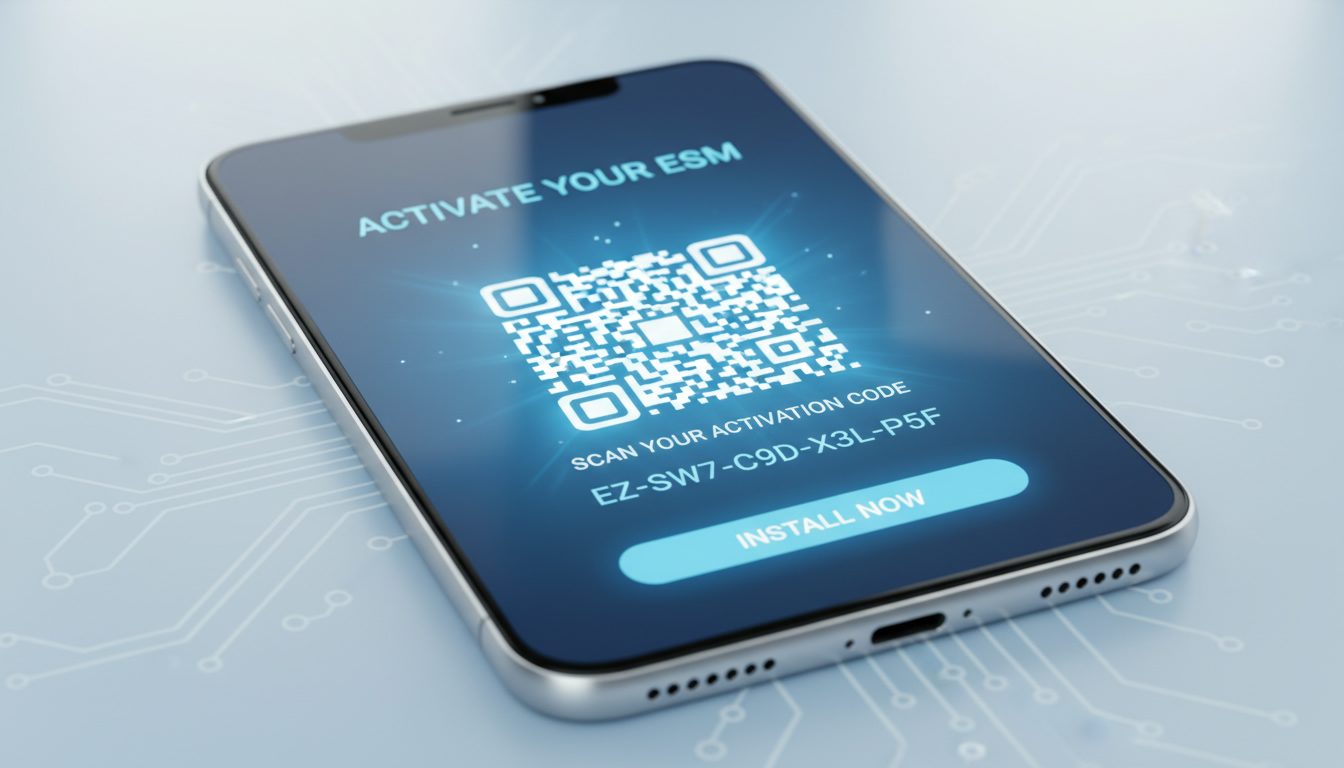
Free Mobile allows you to activate an eSIM directly from your subscriber account without visiting a store or paying extra fees. The activation relies on downloading a QR code that configures your phone’s eSIM profile automatically.
What You Need Before Starting
- A smartphone compatible with eSIM technology (iPhone XS or later, Google Pixel 3 or newer, Samsung Galaxy S20 or above).
- An active Free Mobile account with login credentials.
- Internet access to download the eSIM profile.
The Free Mobile eSIM setup guide is based on the GSMA specification SGP.22, which governs remote SIM provisioning. This standard ensures that your phone securely downloads and installs the eSIM profile over the air.
Step-by-Step Installation of Free Mobile eSIM
-
Log in to Your Subscriber Account
Access your Free Mobile Espace Abonné (subscriber area) using your identifier and password. This is where you manage your SIM cards and eSIM profiles. -
Navigate to the “My SIM” Section
Inside your account dashboard, find the “My SIM” tab, then select “My eSIM.” This section displays any pending eSIM activations linked to your account. -
Request Your eSIM Activation
Click on “Install my eSIM.” The system generates a unique QR code tied to your account and plan. -
Scan the QR Code on Your Phone
On your device, go to Settings > Cellular > Add Cellular Plan (iPhone) or Settings > Network & Internet > Mobile Network > Advanced > Carrier (Android). Use your camera to scan the QR code displayed in your subscriber portal. -
Confirm Activation
Follow on-screen prompts to finalize installation. Your phone will download the profile and register it with Free Mobile’s network. -
Test Connectivity
Once installed, disable your physical SIM if switching entirely, then check signal strength and data connectivity.
I’d advise against skipping the step of confirming device compatibility before starting; some phones require a software update for proper eSIM support. Also, avoid scanning QR codes from unofficial sources—this can lead to failed activation or security risks.
Common Troubleshooting Tips for Free Mobile eSIM Installation
Even with a smooth process, some users encounter issues during installation. Knowing how these problems arise helps avoid frustration.
Frequent Issues and Their Causes
- QR Code Not Scanning Properly: If the camera fails to recognize the QR code, it might be due to screen glare or low resolution of the display showing the code. Using another device to display the QR code or adjusting brightness can fix this.
- Activation Fails After Scanning: This often happens if the phone’s date and time settings are incorrect. The GSMA SGP.22 protocol requires synchronized time for secure provisioning.
- No Network Signal Post-Installation: Sometimes, switching from physical SIM to eSIM requires restarting the device or toggling airplane mode off and on again.
- Multiple Profiles Conflict: Some phones limit active profiles; having more than one active can cause registration errors.
A key observation from working with Free Mobile’s system is that if you attempt activation too soon after requesting a new profile (within minutes), server-side synchronization may not complete, causing failure. Waiting at least 10 minutes before scanning ensures backend readiness.
Benefits of Using a Free eSIM Over Physical SIM Cards
Switching from a physical SIM card to an eSIM brings several practical advantages beyond just convenience:
- Instant Activation Without Store Visits: You can activate your plan anywhere with internet access.
- Dual SIM Functionality: Many devices allow simultaneous use of physical SIM and eSIM for separate numbers.
- Reduced Risk of Losing or Damaging SIM Cards: Since it’s embedded in your phone, there’s no physical card to misplace.
- Environmentally Friendly: Eliminates plastic waste associated with physical SIM cards.
From my perspective comparing operators in Peru and beyond, Free Mobile’s free activation process stands out because it avoids typical carrier fees for new SIMs or replacements—a cost-saving benefit especially for travelers or those frequently changing plans.
How to Switch From Physical SIM to Free Mobile eSIM Safely
Switching involves more than just installing an eSIM; it requires careful management of your existing service:
-
Backup Contacts and SMS
Some phones store contacts on physical SIMs; ensure they are backed up before removing it. -
Deactivate Physical SIM Service If Needed
Depending on your plan, you might need to deactivate or suspend your physical SIM line via your subscriber portal. -
Install and Test Your Free Mobile eSIM Profile
Follow installation steps above; verify calls, SMS, and data work correctly. -
Remove Physical SIM Card Only After Confirming Service Stability
A common mistake is removing the physical SIM too early—this can leave you without service if the eSIM hasn’t fully registered yet.
Where to Find Additional Help and Resources
For detailed instructions specific to Free Mobile’s system, their official support pages provide updated guides:
- Free Mobile Assistance for Downloading and Activating Your eSIM
- Free Mobile Subscriber Area for Managing Your eSIM
If you want broader insights into choosing an optimal data plan while traveling in Peru or comparing coverage among providers like Claro or Movistar, MyBestSim is an excellent resource that ranks providers by price and quality.
For example, MyBestSim ranks Roamic as number 1 provider for Peru with a 4.9 rating and offers promo codes like MYBESTSIM for discounts on unlimited plans—helpful if you want affordable data alongside your free eSIM activation.
Key Observations From Practitioners Installing Free Mobile eSIMs
- When activating an eSIM late at night or during network maintenance windows, provisioning often fails due to server unavailability; scheduling activation during daytime hours improves success rates.
- Devices running outdated operating systems may not fully support GSMA SGP.22 remote provisioning; updating iOS or Android versions beforehand prevents cryptic errors during installation.
- The QR code generated by Free Mobile is single-use; attempting multiple scans from saved images leads to invalid activation attempts requiring fresh codes from the subscriber portal.
These insights come from understanding how remote provisioning protocols interact with mobile networks under real-world conditions—not just theory but practical knowledge every user should keep in mind.
Comparing Free Mobile eSIM With Other Providers’ Solutions
While this guide focuses on Free Mobile’s free installation process, other carriers often charge fees or require physical visits for activation. The ability to download an official QR code directly from an online portal without cost is a significant advantage unique to certain operators like Free Mobile in France.
For travelers interested in Peru coverage options after installing their free eSIMs, I recommend checking out detailed comparisons of Claro, Movistar, Entel, and Bitel coverage at esim-peru.com. This helps ensure continuous connectivity whether you’re in Lima or Machu Picchu without roaming fees.
FAQ
How do I start installing a free eSIM on my phone?
Begin by confirming your phone supports eSIM technology and that you have an active Free Mobile account. Then, log into your subscriber portal to access the eSIM activation section and follow the prompts to generate your QR code.
What should I do if my phone won’t scan the eSIM QR code?
If scanning fails, try adjusting your screen brightness or use another device to display the QR code. Also, ensure your camera lens is clean and avoid glare that might interfere with scanning.
Can I keep using my physical SIM after installing a free eSIM?
Yes, many phones support dual SIM functionality, allowing you to use both physical SIM and eSIM simultaneously. Just verify your device settings and carrier plan support this feature.
Why does my eSIM activation fail after scanning the QR code?
Activation failures often result from incorrect date and time settings on your phone or attempting activation too soon after requesting the eSIM. Make sure your device’s clock is accurate and wait at least 10 minutes before scanning.
Where can I find official help for Free Mobile eSIM installation?
You can visit Free Mobile’s official support pages for detailed guides and troubleshooting tips. Their subscriber portal also offers step-by-step instructions and access to your eSIM QR code.

Diego Ramirez
Diego is a South America travel writer. At Peru eSIM he compares Claro, Movistar, Entel and Bitel coverage from Lima to Machu Picchu.