How to Use an eSIM Card for iPhone in 2026
8/14/2026
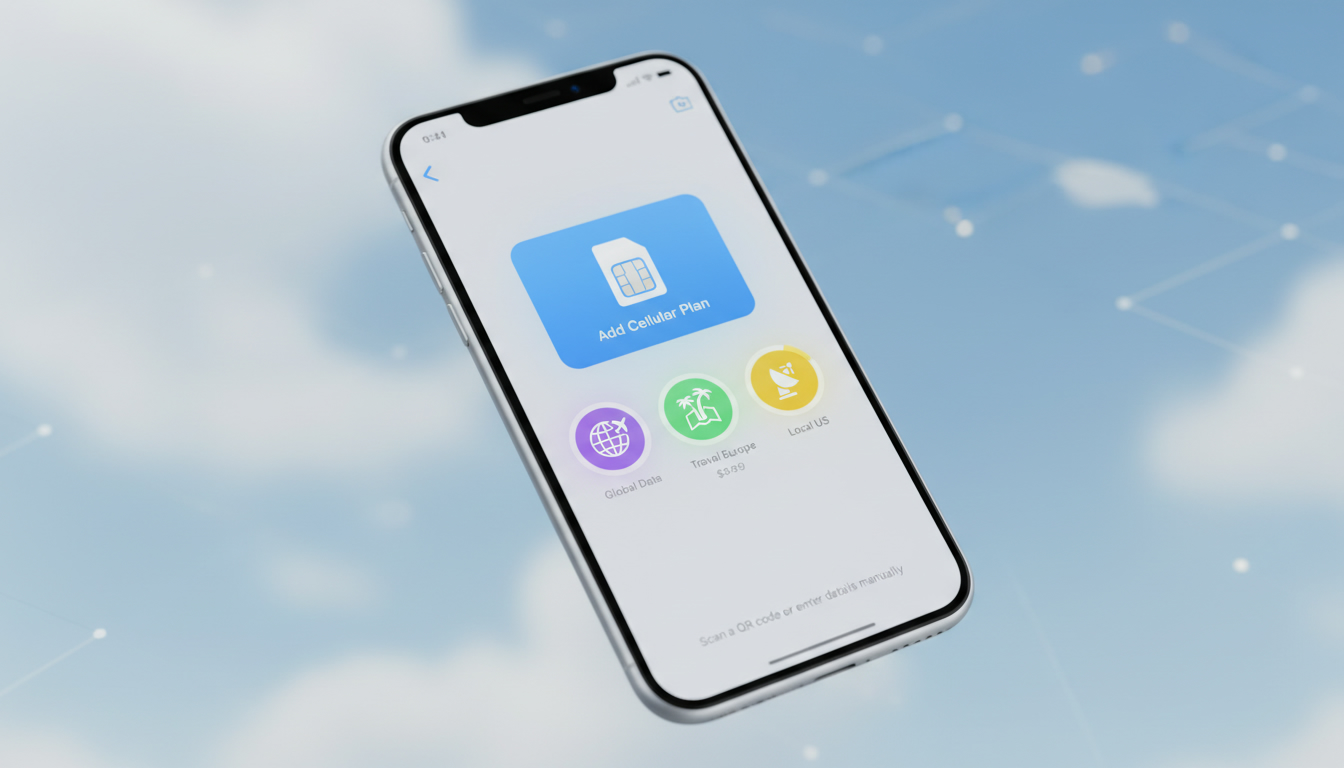
In short, what you'll discover in this article: Learn what an eSIM card iPhone is, how to set it up easily, and why it’s a smart choice over physical SIM cards. Get step-by-step activation tips, compatibility info, and how to manage dual SIMs for seamless connectivity.
1. Introduction – What Is an eSIM and Why Use It on iPhone?
An eSIM (embedded SIM) is a digital SIM card built into your iPhone that replaces the need for a physical SIM card. Instead of inserting a plastic card, you download your cellular plan directly onto your device.
This technology offers flexibility for managing multiple phone numbers or data plans without juggling physical cards.
Using an eSIM card iPhone lets you switch carriers or add local data plans instantly, especially useful when traveling. It also enhances security since the eSIM cannot be physically removed if your phone is lost or stolen.
For anyone wanting convenience and modern mobile management, an eSIM is a game changer.
2. Compatibility – Which iPhones and iOS Versions Support eSIM?
Not all iPhones support eSIM technology. Compatible models start from the iPhone XR and XS series onward, including the latest iPhone 17 and 16 models.
Additionally, your device must run at least iOS 12.1 or later to activate an eSIM profile.
Here’s a quick overview of compatible iPhones:
- iPhone XR, XS, XS Max
- iPhone 11 series
- iPhone 12 series and newer (including iPhone 17 Pro Max)
- Some iPads and Apple Watches also support eSIM
Make sure your iPhone is updated to the latest iOS version to enjoy the best eSIM features and carrier support.
3. Benefits and Limitations of eSIM Compared to Physical SIM on iPhone
The benefits of using an eSIM card on your iPhone include:
- Convenience: No need to swap physical SIM cards when changing carriers or plans.
- Dual SIM Capability: Use two phone numbers simultaneously on one device.
- Security: The embedded chip cannot be removed or lost separately.
- Travel Friendly: Easily add local data plans without buying physical SIMs abroad.
- Environmentally Friendly: Reduces plastic waste from physical cards.
However, some limitations exist:
- Not all carriers support eSIM activation yet.
- Switching devices requires transferring or reactivating the eSIM profile.
- Managing multiple profiles can sometimes cause conflicts if not handled properly.
Overall, the difference between physical SIM and eSIM on iPhone is mainly about flexibility and ease of use versus traditional hardware swapping.
4. How to Obtain an eSIM from Your Carrier
4.1 Types of Offers (Postpaid, Prepaid, Roaming)
Carriers offer various eSIM plans for iPhone, including:
- Postpaid plans: Monthly subscriptions with billing.
- Prepaid plans: Pay-as-you-go options ideal for short-term use.
- Roaming plans: Temporary data packages designed for travel abroad.
Choosing the right type depends on your usage needs—whether local daily use or international roaming.
4.2 Documents/Information Needed (ICCID, QR Code, Activation Code)
To activate your compatible eSIM card for iPhone, you typically need:
- A QR code provided by your carrier to scan during setup.
- ICCID number (unique identifier for the SIM profile).
- Activation code or SM-DP+ address for manual entry if QR scanning isn’t possible.
Having these ready speeds up the installation process.
5. Step-by-Step Tutorial: How to Activate an eSIM on iPhone
5.1 Method 1 – Via QR Code
- Open Settings > Cellular > Add Cellular Plan.
- Scan the QR code given by your carrier using your iPhone camera.
- Follow on-screen prompts to label your plan (e.g., Primary, Secondary).
- Confirm activation; your new cellular plan will appear under Cellular Plans.
This method is the easiest and most common way to install an eSIM on iPhone.
5.2 Method 2 – Via Carrier App
Some carriers provide apps that allow you to purchase and activate an eSIM directly:
- Download your carrier’s app from the App Store.
- Purchase or select an eSIM plan within the app.
- Follow instructions to install the plan automatically on your device.
This method is convenient if you prefer managing everything digitally without visiting a store.
5.3 Method 3 – Manual Entry (SM-DP+ / Activation Code)
If you have no QR code but have activation details:
- Go to Settings > Cellular > Add Cellular Plan > Enter Details Manually.
- Input SM-DP+ address and activation code provided by your carrier.
- Complete setup as prompted.
5.4 Transferring an eSIM from Another iPhone
If upgrading or switching phones:
- On old iPhone: Go to Settings > Cellular > select the plan > choose Transfer to Another Device.
- On new iPhone: Follow prompts during setup to receive transferred profile.
- Confirm activation on new device.
This feature simplifies moving your eSIM profile without contacting support.
6. Configure and Manage Dual SIM on iPhone
6.1 Set Primary Line and Data Line
With dual SIM support via one physical SIM + one eSIM:
- Choose which line is primary for calls and messages.
- Select which line handles cellular data under Settings > Cellular > Cellular Data.
6.2 Call / Data / SMS Settings and Switching
You can customize:
- Default line for outgoing calls.
- Use both lines simultaneously for calls and texts.
- Switch cellular data between lines manually when needed.
This flexibility allows managing personal and work numbers seamlessly on one device.
7. Troubleshooting – Common Issues and Quick Fixes
7.1 QR Code Not Scanning / Activation Failed
- Ensure camera focus is clear; try good lighting conditions.
- Verify QR code validity with carrier support.
- Restart your phone before retrying activation steps.
7.2 No Network After Activation
- Check cellular settings; toggle airplane mode off/on.
- Confirm carrier supports service in your region.
- Reset network settings if needed via Settings > General > Reset > Reset Network Settings.
7.3 Conflicts Between eSIM Profiles
If multiple profiles cause issues:
- Disable unused profiles temporarily in cellular settings.
- Remove outdated profiles if no longer needed.
- Contact carrier if conflicts persist after troubleshooting.
8. eSIM and Travel – Choosing an eSIM for Roaming
8.1 Quick Comparison of Temporary Offers by Region
Travelers can purchase regional or global eSIM roaming plans from providers like JamboSim, Yesim, or Orange Travel with instant activation worldwide.
8.2 Tips to Avoid Roaming Fees
- Buy a local or regional eSIM card before arrival via apps or websites.
- Use Wi-Fi calling when possible.
- Monitor data usage carefully in roaming mode.
For Peru travelers specifically, check out the best Peru travel mobile data options for affordable connectivity solutions during your trip.
9. Security, Backup, and Deleting an eSIM Profile
9.1 What Apple Does vs Carrier Controls
Apple encrypts eSIM profiles securely within its system but carriers control activation codes and profile management remotely.
9.2 Best Practices to Protect Access
- Use strong device passcodes and Face ID/Touch ID.
- Avoid sharing QR codes publicly.
- Regularly review active profiles in settings; delete unused ones promptly.
10. Costs and Carrier Comparison (Buying Tips)
When selecting an eSIM plan for iPhone, consider price, coverage, and customer ratings from trusted providers like those listed by MyBestSim:
| Provider | MyBestSim Rank | Rating | Promo Code | Discount |
|---|---|---|---|---|
| Orange Travel | #2 | 4.2 | MYBESTSIM | -5% unlimited |
| Yesim | #3 | 4.7 | MYBESTSIM20 | -20% discount |
| LinkeSIM | #4 | 4.5 | MYBESTSIM | -5% unlimited |
| Saily | #8 | 4.6 | MYBESTSIM | -10% unlimited |
| SIMOVO | #12 | 4.5 | MYBESTSIM | -5% unlimited |
| Yatelo | #17 | 4 | MYBESTSIM | -10% unlimited |
Use these codes at checkout when purchasing plans online to save money instantly.
11. Conclusion
The eSIM card iPhone offers a modern way to manage mobile connectivity with ease, security, and flexibility—perfect for travelers or users juggling multiple lines daily. By following this guide’s steps on compatibility, activation methods, dual SIM management, and troubleshooting, you can confidently switch to or add an eSIM today.
Check your device compatibility now and explore available plans at esim-peru.com to stay connected effortlessly wherever you go!
FAQ
What iPhone models support eSIM technology?
eSIM is supported on iPhone XR, XS, and all newer models including the iPhone 11, 12, 16, and 17 series. Your device must also run iOS 12.1 or later to activate an eSIM profile.
How do I activate an eSIM on my iPhone using a QR code?
To activate via QR code, go to Settings > Cellular > Add Cellular Plan, then scan the QR code provided by your carrier. Follow the prompts to label and confirm your new cellular plan.
Can I use two phone numbers on one iPhone with eSIM?
Yes, iPhones with eSIM support dual SIM functionality, allowing you to use one physical SIM and one eSIM simultaneously for calls, texts, and data.
What should I do if my eSIM activation fails or QR code won’t scan?
Try improving lighting and focus for scanning, verify the QR code with your carrier, restart your iPhone, or enter activation details manually if scanning fails.
Are there any costs or discounts when buying an eSIM plan for iPhone?
Costs vary by carrier and plan type. Many providers offer promo codes like MYBESTSIM for discounts up to 20%. Compare prices and coverage before purchasing.

Diego Ramirez
Diego is a South America travel writer. At Peru eSIM he compares Claro, Movistar, Entel and Bitel coverage from Lima to Machu Picchu.