How to Manage Data Roaming on iPhone for International Travel
7/27/2026
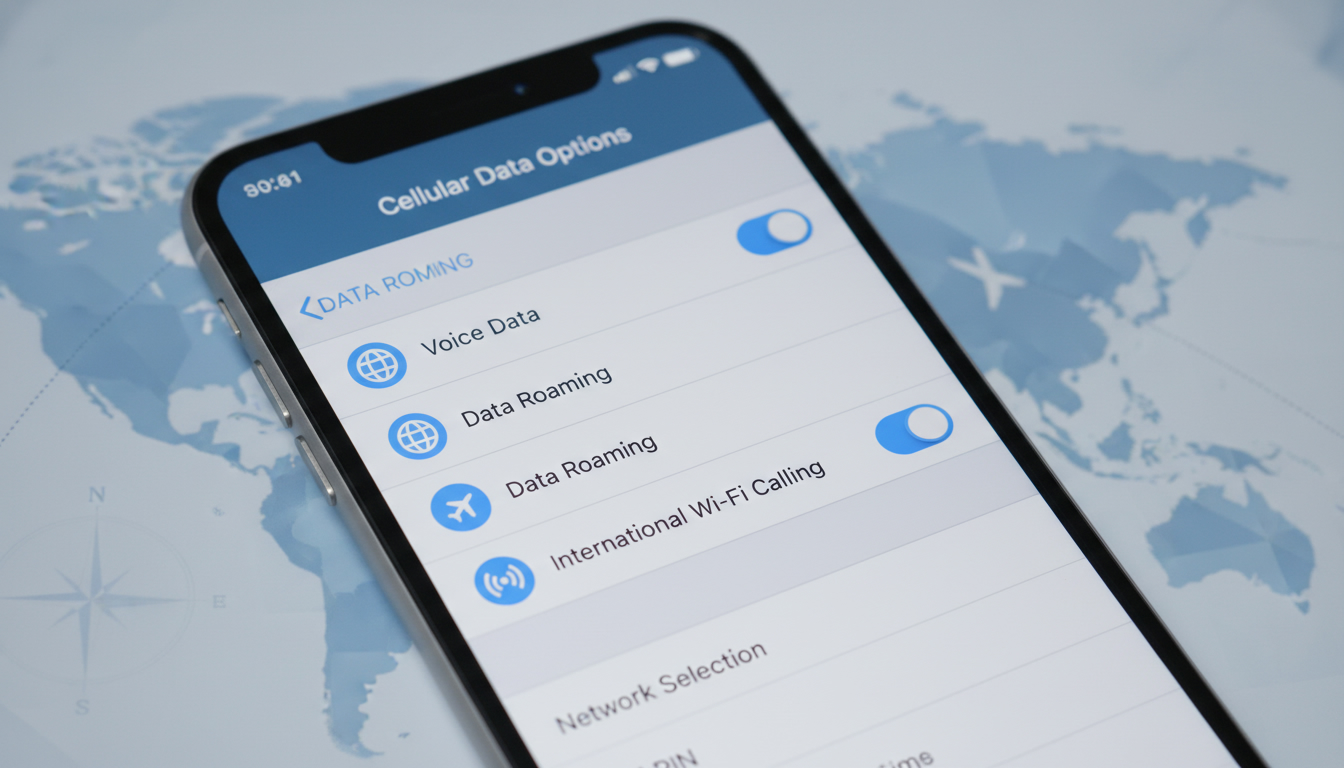
In short, what you'll discover in this article: Learn how to manage data roaming iPhone settings effectively for international travel. Understand costs, enable or disable roaming, explore eSIM options, and get practical tips to avoid unexpected fees while staying connected abroad.
1. Introduction — What Is Data Roaming on iPhone and Why It Matters
Data roaming on an iPhone allows your device to connect to cellular networks outside your home country, enabling internet access while traveling internationally. This feature is essential for using maps, messaging apps, and browsing without Wi-Fi.
However, roaming can lead to high charges if not managed properly. Understanding how to control the iPhone data roaming settings helps you stay connected without surprises on your bill.
2. Costs and Billing of Roaming
2.1 Differences Between EU, Non-EU, and Regional Zones
Roaming costs vary significantly depending on your destination. Within the European Union, many carriers offer roaming at no extra charge due to regulatory agreements.
Outside the EU or in regional zones, roaming fees can be much higher because your iPhone connects to foreign networks with different pricing structures.
2.2 Risks of Out-of-Plan Charges and How to Avoid Them
Unexpected roaming fees often arise from background app data or automatic updates. To avoid these:
- Disable data roaming when not needed.
- Use Wi-Fi whenever possible.
- Monitor data usage closely.
- Consider local SIM cards or eSIM plans tailored for your destination.
3. iPhone Settings Related to Roaming
3.1 How to Enable or Disable Data Roaming (Step-by-Step)
To control how to enable data roaming on an iPhone:
- Open the Settings app.
- Tap Cellular or Mobile Data.
- Select Cellular Data Options.
- Toggle Data Roaming on or off.
Turning off data roaming prevents your iPhone from using cellular data abroad, avoiding unwanted charges.
3.2 Using Low Data Mode and Managing Background Consumption
Activating Low Data Mode reduces background data use:
- Go to Settings > Cellular > Cellular Data Options.
- Enable Low Data Mode.
This setting helps extend battery life and limits apps from using data in the background during roaming.
3.3 APN Settings and When to Configure Them
Sometimes, you may need to adjust the APN iPhone settings if your carrier’s network requires it for proper data connection abroad:
- Go to Settings > Cellular > Cellular Data Network.
- Enter the APN details provided by your carrier or local provider.
This step is usually necessary when using a local SIM or certain eSIMs.
4. eSIM vs Physical SIM Card for Traveling
4.1 Advantages and Disadvantages of eSIM
Using an eSIM roaming plan offers several benefits:
- Instant activation without visiting a store.
- Multiple profiles on one device.
- Easy switching between plans.
However, some countries or carriers may have limited eSIM support compared to physical SIM cards.
4.2 How to Buy and Install an eSIM for Roaming
To get an eSIM for travel:
- Purchase a plan from a reputable provider like those listed on esim-peru.com.
- Scan the QR code or enter activation details in Settings > Cellular > Add Cellular Plan.
- Select the eSIM as your active data plan when abroad.
For example, Peru travelers can find competitive plans from providers such as Airalo or Roamic with verified discount codes available through MyBestSim.
5. Networks, Tethering, and Limitations (Hotspot)
5.1 Using Personal Hotspot While Roaming — Precautions
Sharing your iPhone’s internet via hotspot during roaming can quickly consume data and incur high fees. Always check your plan’s hotspot allowance and monitor usage carefully.
5.2 Checking Carrier Compatibility and Frequency Bands
Before traveling, verify that your iPhone supports the local network bands of your destination’s carriers to ensure reliable connectivity.
6. Tips for Saving Data While Traveling
6.1 Apps to Restrict and Sync Settings to Disable
Limit data usage by:
- Restricting background app refresh for non-essential apps.
- Disabling automatic photo uploads or cloud backups.
- Turning off push notifications for heavy apps.
6.2 Using Public Wi-Fi Safely (VPN Recommended)
Public Wi-Fi is a great way to save on mobile data but can expose you to security risks. Use a trusted VPN app when connecting to public networks for safer browsing.
7. Practical Scenarios and Cost Examples
Travelers often face varying costs depending on their destination and plan choice. For instance:
- A one-day 3GB eSIM plan from eSIM.dog costs $2.99.
- A monthly 3GB plan from JamboSim is $4.99.
These affordable options help avoid expensive roaming fees while ensuring connectivity during trips like visiting Machu Picchu in Peru.
8. Troubleshooting and Support
8.1 What To Do If There’s No Network Upon Arrival?
If your iPhone doesn’t connect after landing:
- Toggle Airplane Mode on/off.
- Restart the device.
- Check carrier settings updates under Settings > General > About.
- Manually select a network under Cellular > Network Selection if automatic fails.
8.2 How To Dispute a Roaming Bill?
If you suspect incorrect charges:
- Review detailed usage in your carrier’s app or website.
- Contact customer service promptly with evidence.
- Ask about any available roaming packages or refunds.
9. Conclusion + Pre-Travel Checklist
Managing data roaming iPhone settings wisely prevents unexpected bills and keeps you connected abroad effortlessly. Before traveling:
- Confirm roaming is enabled only when needed.
- Consider purchasing an affordable eSIM plan from trusted providers like those featured on esim-peru.com.
- Activate Low Data Mode and restrict background apps.
Following these steps ensures smooth communication during your trip without breaking the bank.
10. Resources and Useful Links (Operators, eSIM Providers, Usage Tracking Tools)
For travelers heading to Peru, explore detailed options at esim-peru.com offering competitive plans from Claro, Movistar, Entel, Bitel, plus exclusive discount codes verified by MyBestSim.
Also consider guides like how to get an eSIM in Peru for activation tips tailored specifically for international visitors seeking hassle-free connectivity abroad.
By understanding the impact of data roaming on iPhone battery life, managing settings carefully, and choosing the best plans available—including those with hotspot capabilities—you can enjoy seamless mobile internet during your travels without worrying about costly fees or connectivity issues.
FAQ
How do I enable data roaming on my iPhone?
To enable data roaming, open Settings, tap Cellular or Mobile Data, select Cellular Data Options, and toggle Data Roaming on. This allows your iPhone to use cellular data while abroad but be mindful of potential charges.
What are the risks of using data roaming internationally?
Data roaming can lead to high charges due to background app usage and automatic updates. To avoid unexpected fees, disable roaming when not needed, use Wi-Fi, and monitor your data consumption closely.
When should I adjust APN settings on my iPhone?
You may need to configure APN settings when using a local SIM or certain eSIMs abroad to ensure proper data connection. This is done via Settings > Cellular > Cellular Data Network with details from your carrier.
What are the benefits of using an eSIM for roaming?
An eSIM offers instant activation without a physical card, supports multiple profiles on one device, and allows easy switching between plans. However, eSIM support varies by country and carrier.
How can I save data while roaming on my iPhone?
Save data by enabling Low Data Mode, restricting background app refresh, disabling automatic uploads, and using public Wi-Fi with a VPN for security. These steps help reduce data usage and avoid extra costs.

Diego Ramirez
Diego is a South America travel writer. At Peru eSIM he compares Claro, Movistar, Entel and Bitel coverage from Lima to Machu Picchu.